
How to Use Suica on iPhone: Setup, Top-Ups and Gate Tips
Add Suica to iPhone, transfer a physical card, enable Express Mode, top up safely, tap ticket gates and solve common travel problems in Japan.

Add Suica from Wallet by choosing Add, Transit Card and Suica, then fund it with an eligible payment card and confirm Express Mode. At a supported gate, hold the top of the iPhone close to the reader and use the same device to enter and exit. Check the balance before travel, keep cash as a backup and ask station staff to clear any incomplete journey instead of repeatedly tapping. A physical Suica becomes unusable after a successful transfer to Wallet, and one Suica can be stored on only one device at a time.
What You’ll Learn
- Add a new Suica or transfer an eligible physical card.
- Set Express Mode and tap gates correctly.
- Top up while planning for payment-card failures.
- Use Suica at participating shops and machines.
- Recover from low battery, device changes and gate errors.
Check that the iPhone setup is ready
Suica in Apple Wallet needs a compatible iPhone, a current supported version of iOS, an Apple Account with two-factor authentication and a device passcode. Availability can also depend on the country or region settings and the payment card used for adding value.
Update the phone before travel, sign in to iCloud and confirm that Wallet opens normally. Keep another way to pay until the card has been added, funded and tested.
- Update iOS and sign in to the correct Apple Account.
- Enable a passcode and two-factor authentication.
- Keep cash or another payment method as a backup.
Choose between Suica and Welcome Suica Mobile
Apple Wallet can hold a standard Suica, while JR East also offers Welcome Suica Mobile for eligible visitors. The products are not identical: eligibility, validity, refund conditions and app availability differ.
Choose only after reading the current issuer terms for the product available on your device. Welcome Suica Mobile may restrict issuance or top-up by country and can require location services, so do not assume it can be completed before arrival.
- Compare validity and refund rules.
- Check app availability in your current country.
- Do not mix instructions for the two products.
Add a new Suica in Apple Wallet
Open Wallet, tap the add button, choose Transit Card and select Suica. Choose the new-card option, enter an initial amount, select an eligible payment card and follow the on-screen authentication steps.
Wait for Wallet to confirm that the transit card is ready before approaching a gate. If the card or top-up is declined, try again later or use another supported payment method rather than repeating rapid attempts.
- Wallet → Add → Transit Card → Suica.
- Choose an amount and authenticate payment.
- Confirm the card appears and shows a balance.
Transfer a physical Suica carefully
Wallet may offer a transfer from an eligible physical Suica. Follow the prompts, enter the requested card details and place the iPhone on the physical card until the transfer finishes.
After a successful transfer, the physical card can no longer be used. The remaining balance and eligible deposit treatment are handled by the transfer process, so do not begin unless you are ready to retire that card.
- Finish any open journey before transferring.
- Keep the phone still until transfer completes.
- Treat the physical card as unusable afterward.
Set and verify Express Mode
The first eligible transit card added to Wallet is normally set for Express Mode automatically. This allows the card to be used at supported gates without waking or unlocking the iPhone.
In Wallet settings, confirm the intended Suica is selected as the Express Transit Card, especially if several transit or payment cards are present. Use one device consistently for the entire journey.
- Confirm the correct Express Transit Card.
- No Face ID prompt should be needed at a supported gate.
- Do not enter with iPhone and exit with Apple Watch.
Tap the iPhone at ticket gates
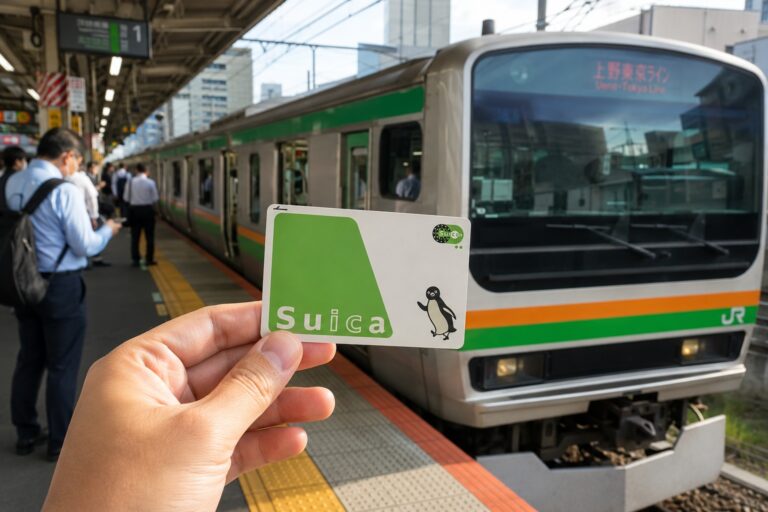
Approach the gate with the iPhone ready and place the top of the device close to the blue contactless reader. Hold it briefly until the gate confirms acceptance, then continue through without stopping in the lane.
Enter and exit with the same Suica on the same device. A mobile data or Wi-Fi connection is not required for the normal gate tap, but the card still needs sufficient balance and a valid journey.
- Present the top of the iPhone to the reader.
- Wait for the sound or visual confirmation.
- Use the same card and device at entry and exit.
Top up the balance in Wallet
Open Wallet, select Suica, choose Add Money, enter an amount and authenticate with an eligible payment card. Card acceptance varies, and an overseas-issued card that works elsewhere is not guaranteed to fund Suica.
Some Wallet and issuer functions can be unavailable during maintenance periods. If a top-up will not complete, keep the existing balance for the current journey and use cash, a ticket machine or another transport option as appropriate.
- Check the balance before entering.
- Add value before it becomes urgent.
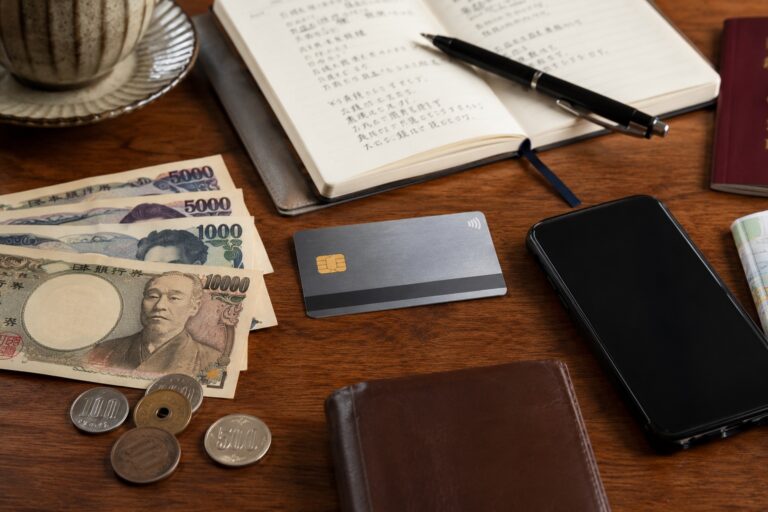
- Keep a cash fallback for payment-card failures.
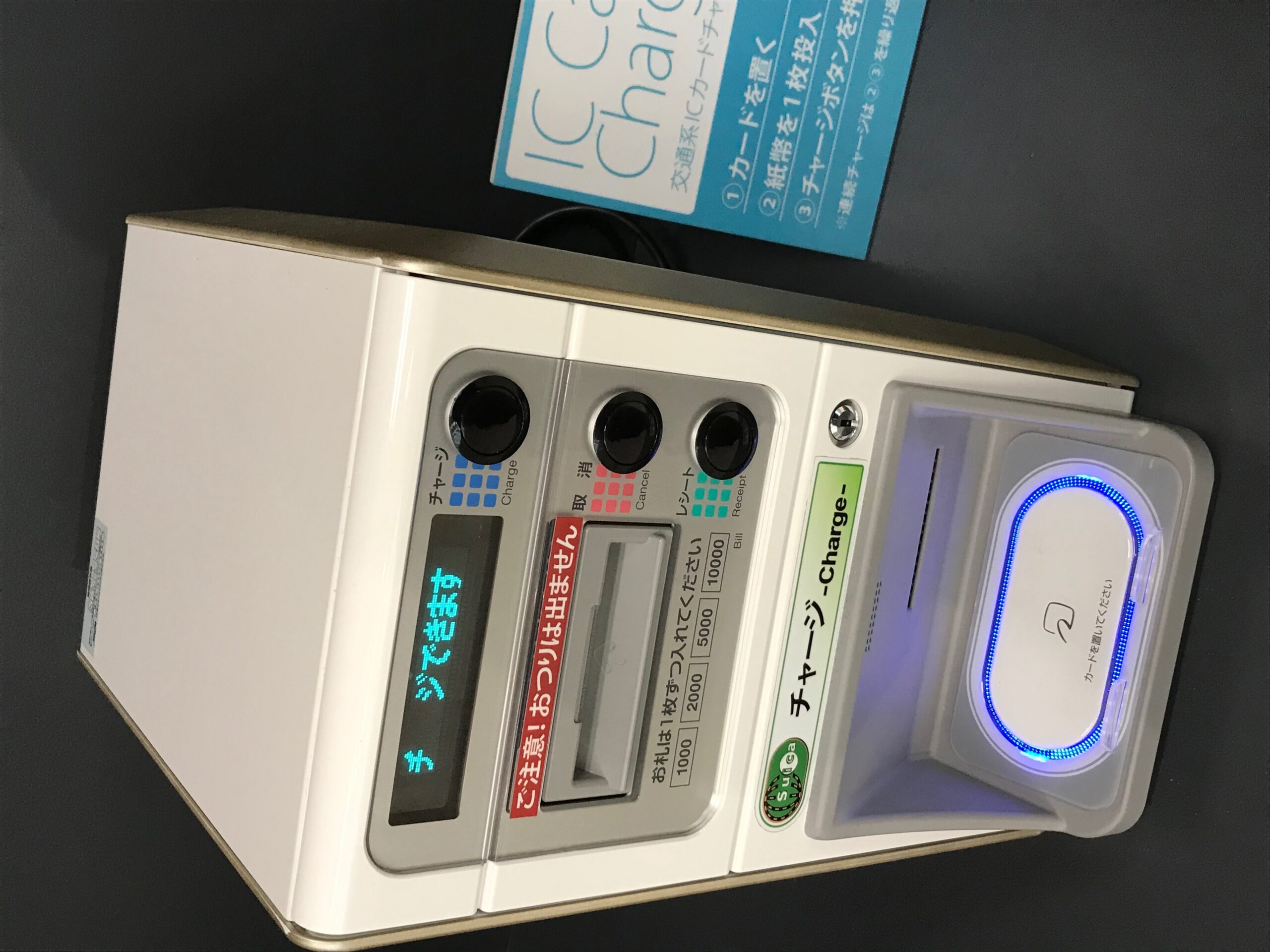
Pay at shops and vending machines
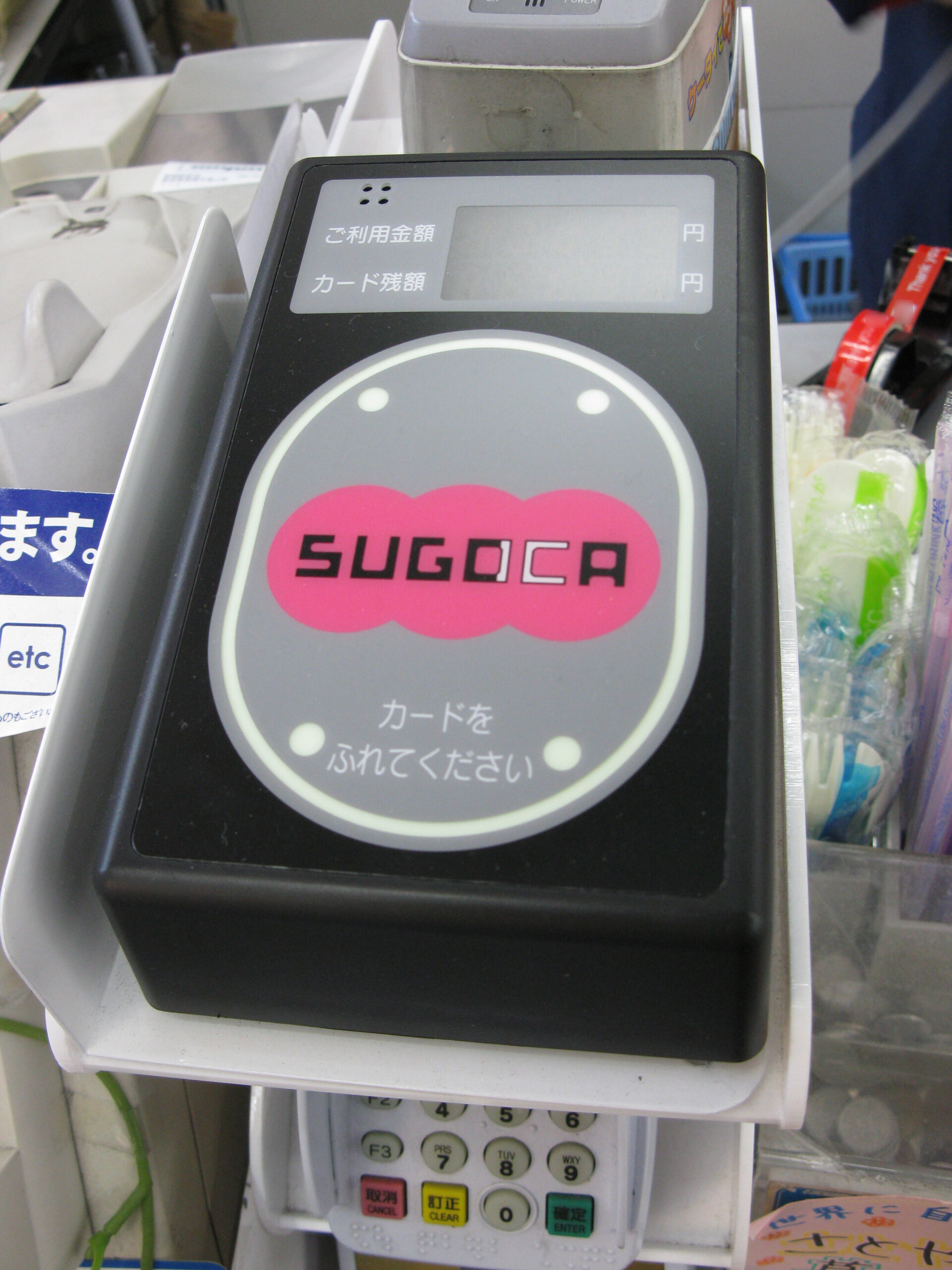
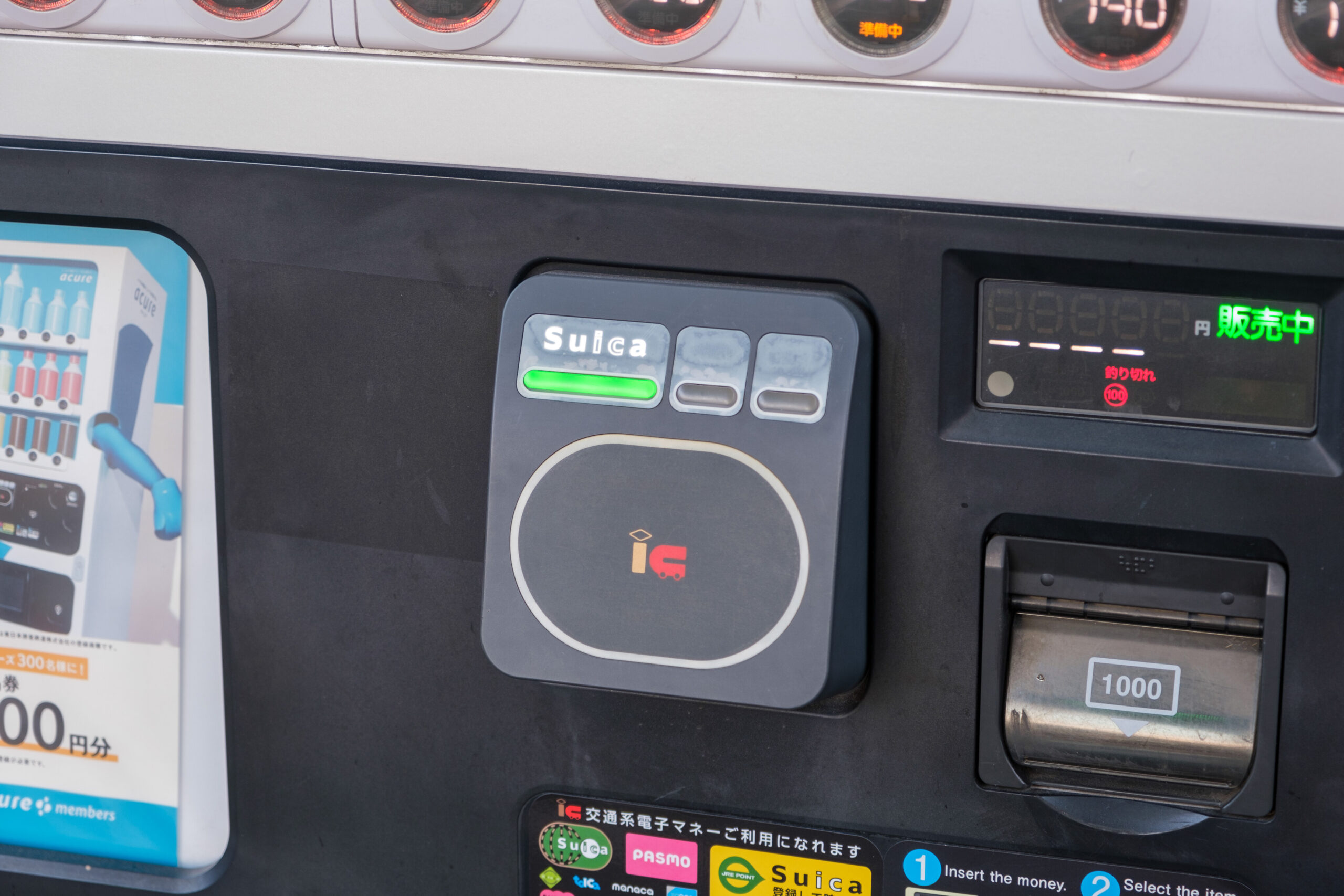
Suica can be used at participating convenience stores, vending machines, lockers and other merchants displaying a compatible IC payment mark. Tell the cashier you want to pay by Suica when a choice is required, then hold the top of the iPhone near the reader.
Acceptance is not universal, and Suica is stored value rather than a general bank card. Check the sign at the exact terminal and keep another payment method for shops that do not accept transport IC cards.
- Look for the Suica or compatible IC mark.
- Select IC payment before tapping when prompted.
- Do not assume every terminal accepts Suica.
Check balance and recent transactions
Wallet shows the card balance and available recent activity. Review it after travel when a charge looks unexpected, but remember that display timing and detail can vary by operator.
A low balance can stop an exit gate from opening. Follow station instructions to adjust or add value instead of trying another card, because the entry record remains attached to the original Suica.
- Review the balance before long trips.
- Use station adjustment facilities when needed.
- Keep the original entry card active until exit.
Move Suica to Apple Watch only when needed
A Suica can be stored on only one device at a time. Moving it to Apple Watch removes it from the iPhone until it is transferred back through the supported Wallet process.
Transfer the card while outside the paid area and confirm which device now holds it. Do not switch devices between entering and leaving a station.
- One Suica resides on one device.
- Move it before starting a journey.
- Check Express Mode again after the transfer.
Prepare for battery loss or a missing phone
Some supported iPhone models may allow Express Mode for a limited time after the battery becomes very low, but travelers should not depend on this. Charge before travel and carry a small power bank on long days.
If the phone is lost, use Apple account security tools and follow Apple’s current instructions for the transit card. Ask station staff for help with any unfinished journey and keep cash or another ticket option separate from the phone.
- Charge before entering the network.
- Keep backup money away from the phone.
- Secure a lost device and contact staff promptly.
Recover the card after changing devices
Before replacing or erasing an iPhone, make sure the device is signed in to iCloud and follow Apple’s transfer or removal process. The card must leave the old device before it can be added to another one.
If setup fails, confirm the same Apple Account, passcode and network connection, then use Apple’s official recovery steps. Avoid creating multiple cards merely to work around a temporary transfer delay.
- Remove or transfer from the old device correctly.
- Use the same Apple Account on the new device.
- Follow official recovery steps for a missing card.
Fix a rejected or incomplete gate tap
If the gate closes or shows an error, step aside safely and avoid repeated taps. Show the iPhone to station staff and explain where you entered so they can inspect the journey record and balance.
Typical causes include insufficient balance, an incomplete previous journey, using a different device at exit or presenting the phone too briefly. Let staff clear the record before trying again.
- Do not force the gate or keep tapping.
- Tell staff the entry station and device used.
- Resolve the record before starting another journey.
Know when Suica is not the ticket
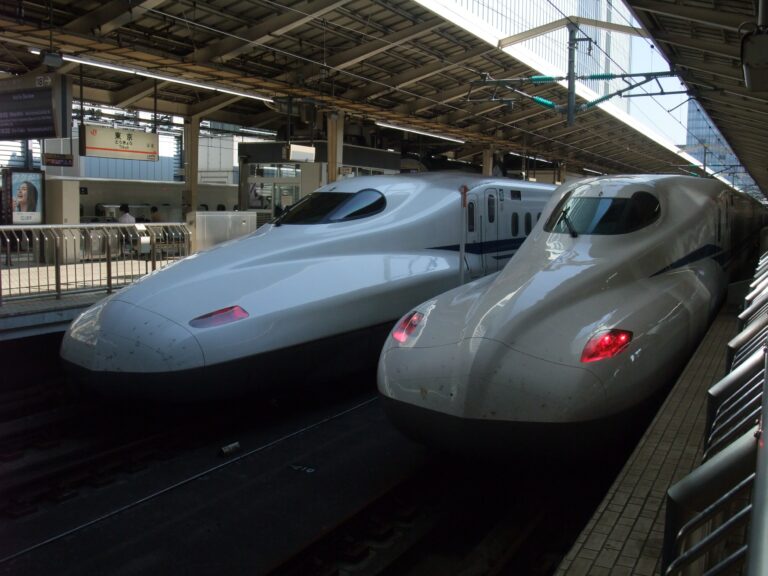
Suica is excellent for ordinary pay-as-you-go local transport, but it does not automatically replace every reserved ticket, airport service, regional pass or Shinkansen booking. Some services require a separate reservation or a linked ticket.
Compare the planned journeys with day passes and reserved tickets. Use Suica for the portions it covers and keep the separate booking or QR code available when the route requires one.
- Check special and reserved services separately.
- Do not assume stored value buys every Shinkansen trip.
- Compare a subway pass for intensive city travel.
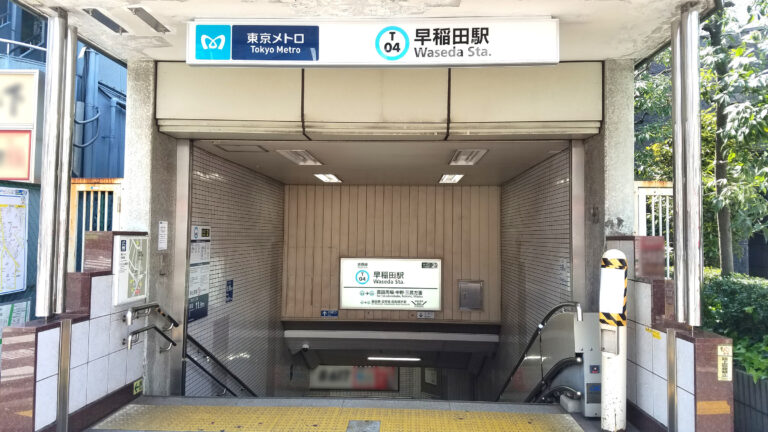
Check the official subway-ticket purchase options
Use Tokyo Metro’s official Tokyo Subway Ticket guide to confirm the ticket type, covered journeys and current purchase options before buying.
FAQ
Can a visitor add Suica to an iPhone?
Eligible visitors can add Suica in Apple Wallet when their device, Apple Account, region and payment setup meet current requirements. Welcome Suica Mobile is a separate visitor option with its own eligibility and validity rules.
Does Suica work without mobile data?
A normal Express Mode tap at a supported gate does not require cellular data or Wi-Fi. Connectivity is still useful for setup, top-ups, account changes and troubleshooting.
Why was my top-up card declined?
Payment-card acceptance varies by issuer and Wallet setup, and maintenance can temporarily affect service. Try later or use another eligible method, and keep cash as a backup.
Can I use one Suica on iPhone and Apple Watch at the same time?
No. One Suica is stored on one device at a time. Transfer it before travel and use that same device for both entry and exit.
What happens to a physical Suica after transfer?
After a successful transfer to Wallet, the physical card no longer works. Complete any open journey first and do not transfer unless you are ready to retire the card.
Can Suica pay for Shinkansen travel?
Suica alone is not a universal Shinkansen ticket. Some services allow linked IC use, but reservations and separate ticket setup may still be required for the exact train.
What should I do when the gate rejects the iPhone?
Step aside and ask station staff to inspect the card record. Do not repeatedly tap or switch to another card, especially when the entry was recorded on the iPhone.
Related Japan Travel Guides

Official References
Final Thoughts
Set up and test Suica before it becomes essential. Confirm Express Mode, keep enough balance and use the same device through each journey. The iPhone makes everyday transit and small purchases faster, but cash and separate reserved tickets remain important backups when a route, merchant or payment card falls outside Suica support.